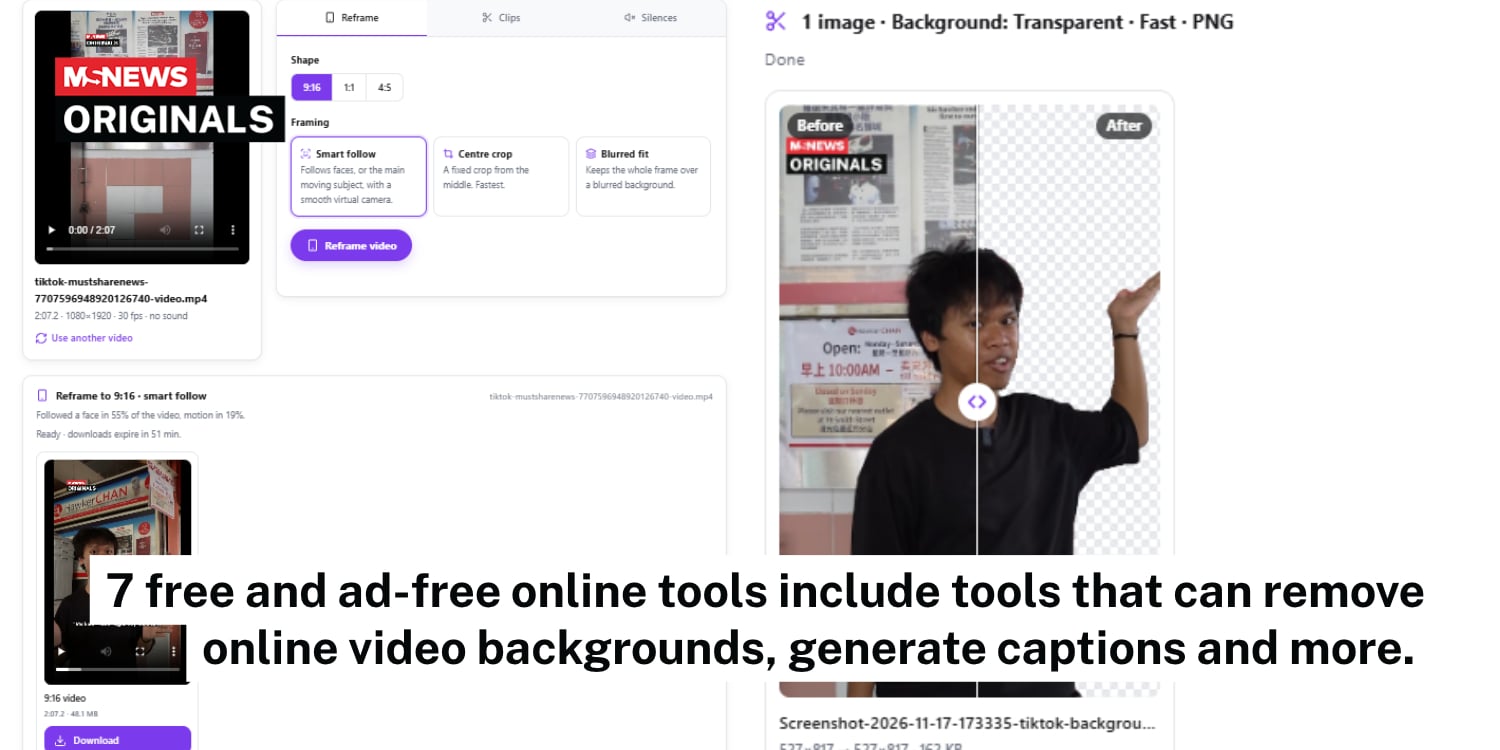

Seven free AI-powered tools for TikTok, Instagram, and YouTube creators
Anyone who has tried to post a Reel knows the work rarely ends at filming. There’s still cropping, cutting, captioning, and somehow compressing the file to send to a friend for feedback.
Source: Prince Photos from Pexels, for illustrative purposes only
Until recently, most of that meant paid editing software or a subscription app. Now, AI tools can run in your browser and handle much of that work for free.
Here are seven of these tools, plus one website that brings it all together.
1. Save reference clips without watermarks
Most creators keep a folder of clips they want to learn from: a transition they liked, a trending audio, a viral hook.
Free downloaders are available online, but many only handle one social media platform and come with pop-up ads.
ToolsMadeFree’s TikTok Downloader takes TikTok, Instagram, and YouTube links in the same box, so you don’t need to pick the platform first.
Paste a public link to save the HD video, a lighter copy, the audio as an MP3 or M4A file, or the cover image. Instagram and YouTube downloads are watermark-free.
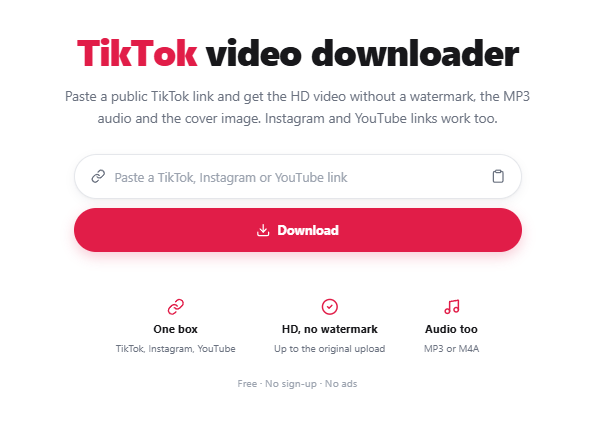
Source: ToolsMadeFree website
TikTok downloads are usually watermark-free too, and the button tells you when they are not.
The tool works on phones, too. Tap “Share” in the app, copy the link, and paste it into the site.
2. Turn long videos into vertical shorts
Landscape footage doesn’t fit TikTok’s 9:16 frame, and cropping it by hand often cuts off the speaker.
AI clipping tools such as OpusClip have become popular for this, though their free plans come with limits.
ToolsMadeFree’s TikTok Video Converter uses “smart reframe”, which tracks faces to decide what stays in the frame.
It locks onto the most prominent face in the first few seconds and follows that person throughout.
If the clip has no faces, the tool follows whatever is moving the most.
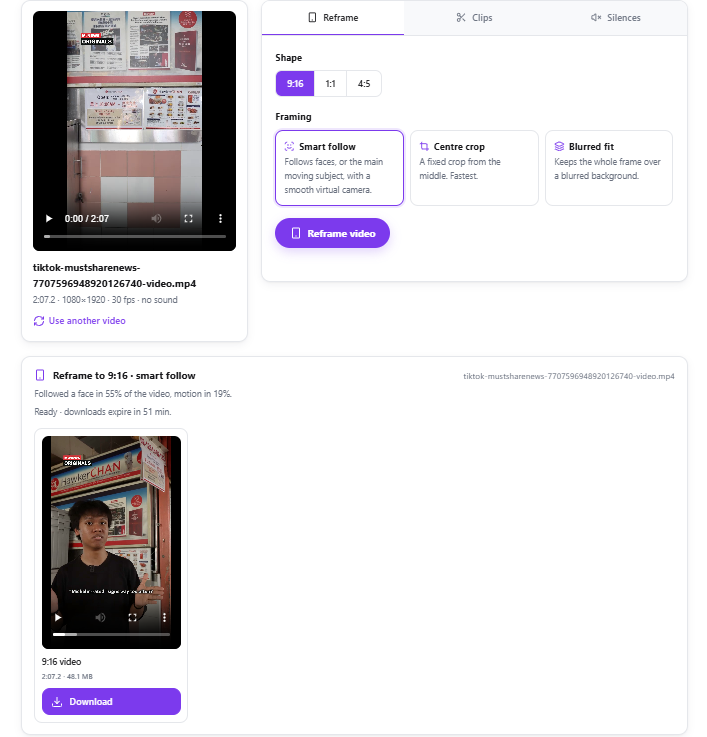
Source: ToolsMadeFree website
If you’d rather keep the whole shot, it can place the landscape video over a blurred copy of itself instead.
The TikTok Video Converter can also:
- cut several clips from one video at once
- suggest the loudest and most energetic 30-second stretches as possible highlights
- remove silences automatically for snappier jump cuts
Source videos can be up to 15 minutes long and up to 500 MB.
3. Remove backgrounds and sharpen blurry images
Small businesses selling on Instagram often need clean product shots, and remove.bg is one of the best-known sites for cutting out backgrounds.
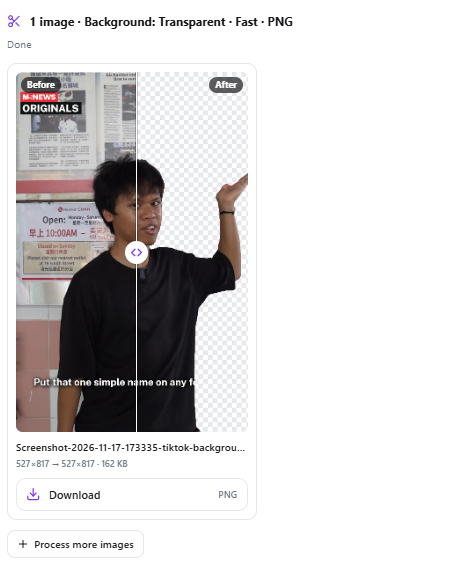
The TikTok Background Remover does the same job with three AI models: a fast one for most product shots, one for hair and fine edges, and one built for portraits.
You can keep the background transparent or swap in white, a brand colour, a blurred version of the original photo, or your own backdrop.
Source: ToolsMadeFree website
The same page includes an AI upscaler that makes small images and thumbnails 2x or 4x bigger. The same page has an AI upscaler that makes small images and thumbnails two or four times bigger. It does warn that small text and faces may come out slightly different.
It does warn that small text and faces may come out slightly different.
You can process up to 20 images at once and download them all in one ZIP file.
4. Shrink videos small enough to send
Anyone who has had a video bounce back from WhatsApp or email knows the pain of file size limits.
Many software options either have size restrictions or take a while to compress larger files.
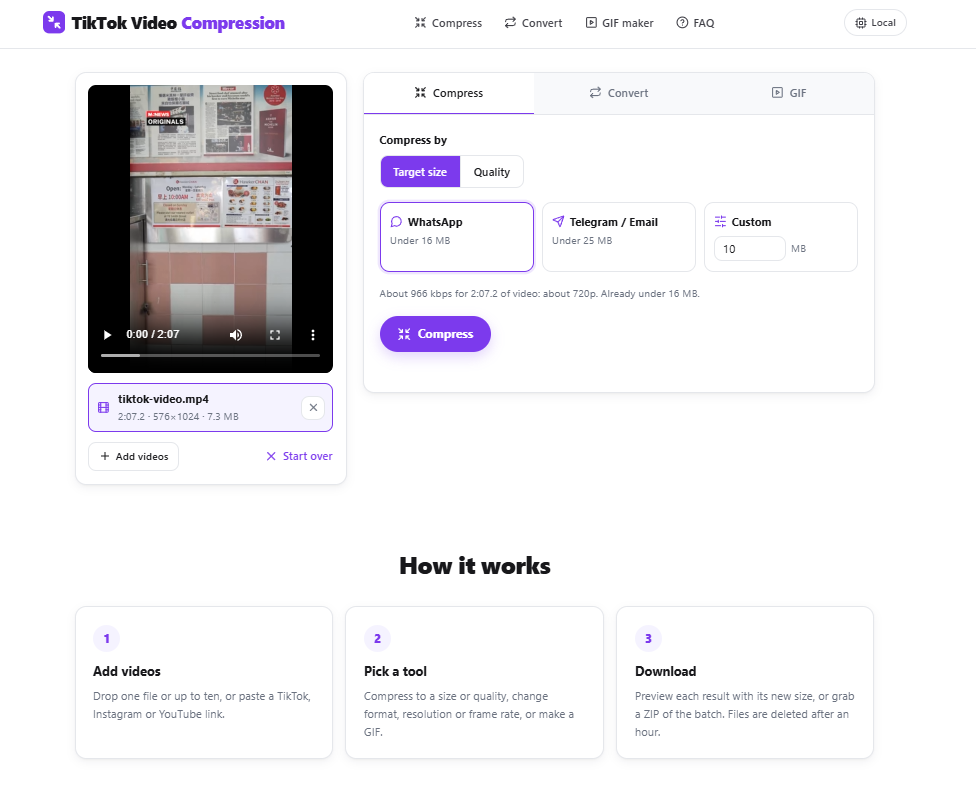
Meanwhile, ToolsMadeFree’s TikTok Video Compression lets you choose a target size, such as WhatsApp’s 16MB or email’s 25MB.
It checks the result afterwards and redoes the job if the file comes out too big.
Source: ToolsMadeFree website
It can also convert between MP4, MOV, WebM, and MKV, extract audio as an MP3, or turn a moment from your video into a GIF or animated WebP.
You can process up to 10 videos at once.
5. Get rid of background noise
Aircon hum, traffic, and chatter at the next table can ruin an otherwise good take.
Adobe Podcast’s Enhance Speech tool made AI audio cleanup popular among creators.
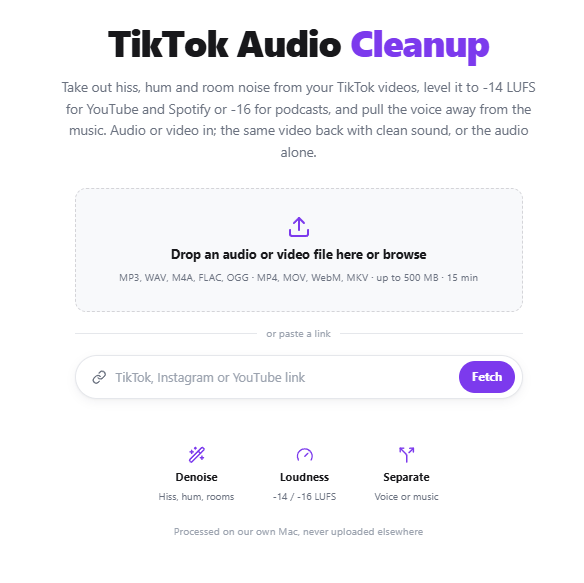
Alternatively, the TikTok Audio Cleanup offers two kinds of noise reduction. “Standard” handles steady noise such as hiss or a fan, while “Voice” uses a speech-trained model that can also deal with changing noise like traffic.
It can level your audio to the volume that platforms such as YouTube and Spotify expect.
That’s measured in Loudness Units relative to Full Scale (LUFS); the usual target is -14 LUFS.
A thumbnail can decide whether someone taps your video, and scrubbing through footage to find a frame where nobody is mid-blink is genuinely tedious.
Source: ToolsMadeFree website
It can also separate the voice from the music, which is handy if you want only the dialogue or only the backing track.
You can preview 20 seconds before committing. If you upload a video, you get the same video back with only the sound replaced.
6. Find the best frame for your cover
A thumbnail can decide whether someone taps your video, and scrubbing through footage to find a frame where nobody is mid-blink is genuinely tedious.
Many creators design their covers in Canva, which has AI features in its free plan.
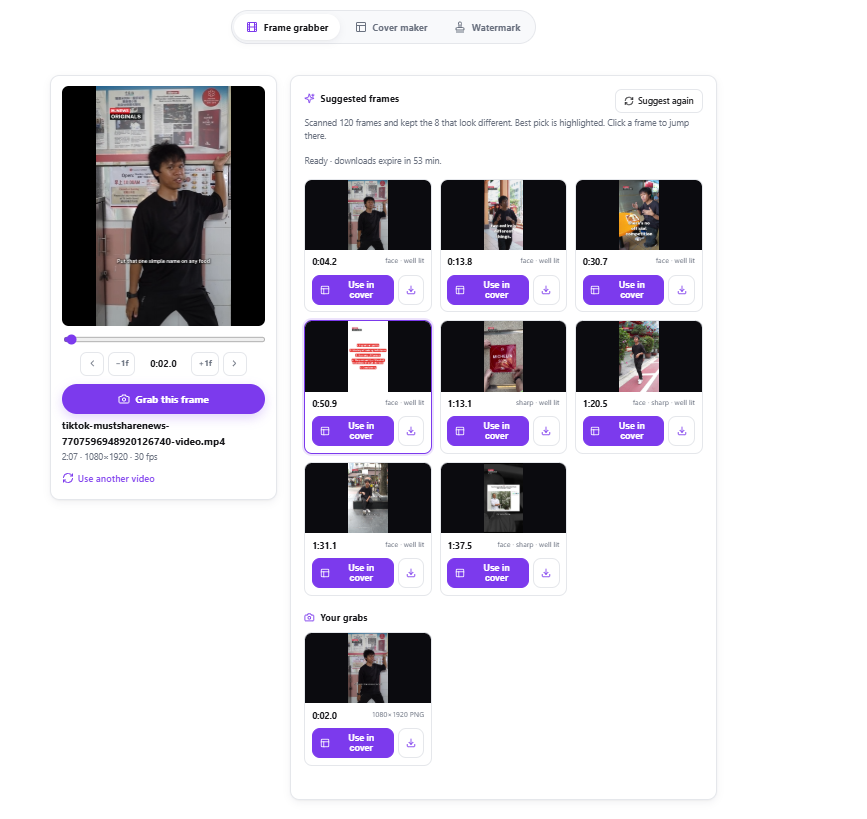
The TikTok Thumbnail Creator starts a step earlier by picking the frame for you. It scans up to 120 frames for sharpness, lighting, and contrast, gives extra points to frames with faces, and suggests the top eight.
Source: ToolsMadeFree website
From there, you can add a bold headline using templates, then export covers sized for YouTube, TikTok, and Instagram, or all three at once.
There’s also a batch watermark tool that stamps your logo or text on up to 50 photos and videos at once.
7. Caption videos in multiple languages
Many people scroll with the sound off, so captions can make or break a video.
YouTube generates automatic captions for uploads, but you can’t burn them into a TikTok or Reel.
The TikTok Caption Generator uses Whisper, the speech recognition model behind many paid caption apps. It can detect the spoken language on its own, including English, Malay, Chinese, Tamil, and several other Asian languages.
Unlike most free transcription tools, you can paste a link directly rather than uploading a downloaded file, which sidesteps the size limits that trip up other services.
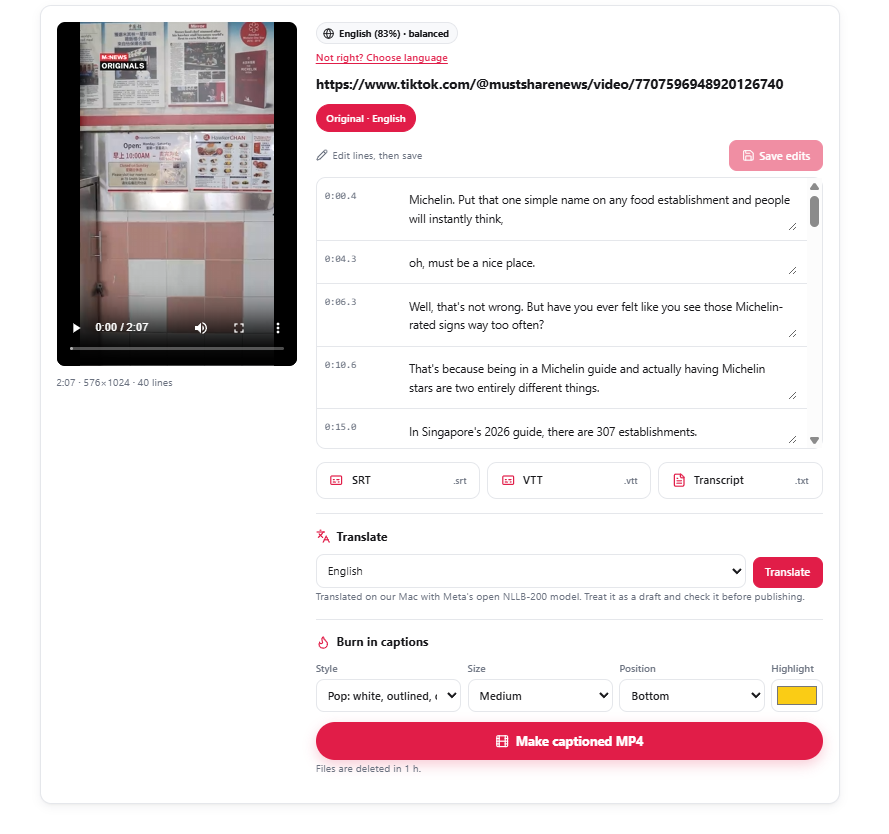
In ToolsMadeFree’s TikTok Caption Generator, you can fix any line in the editor, then download the captions as subtitle files or a plain transcript. You can also make an MP4 with large TikTok-style captions that highlight each word as it’s spoken.
You can translate the captions into English, Malay, Chinese, or Thai.
The site notes that a native speaker should check the Chinese and Thai translations before you post.
All seven tools in one place
Instead of switching between seven different sites, creators can find all of these tools on the ToolsMadeFree website.
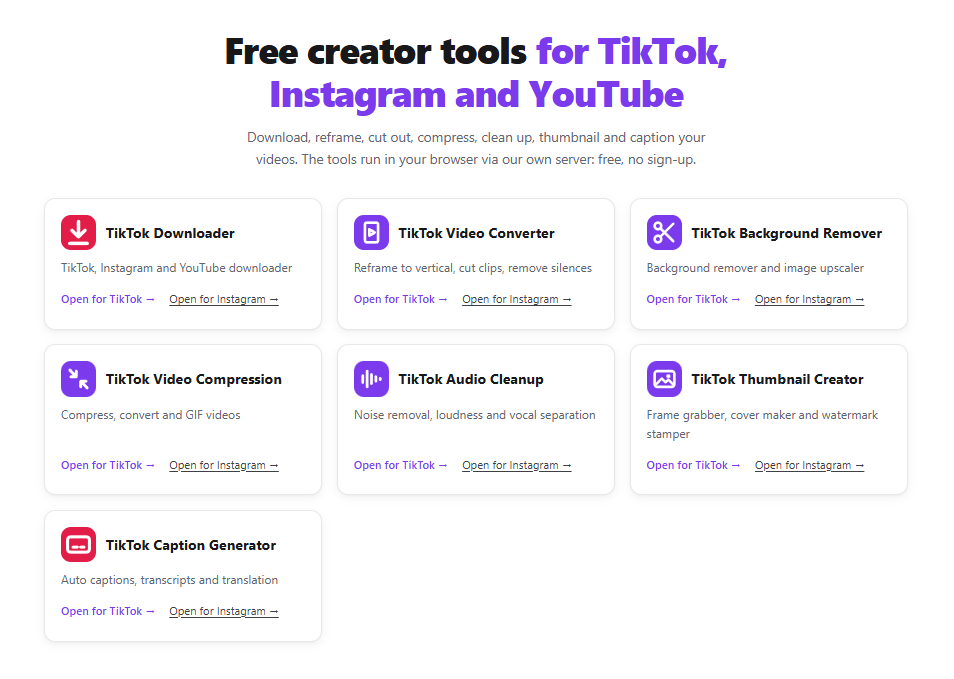
Source: ToolsMadeFree website
They’re free to use, with no sign-up and no ads, and each one accepts TikTok, Instagram, and YouTube links.
That means you can move a clip from the downloader to the captioner to the compressor without saving it to your phone first.
ToolsMadeFree says it runs the tools on its own machines rather than sending files to outside cloud services, and deletes uploads and results after an hour.
It says it built the tools to help creators save reference clips, collect inspiration, and bring their own ideas to life, so remember to credit or get permission from other creators before reposting their content.
Also read: Viral ‘emotional damage’ comedian Steven He visits ITE, shares advice for aspiring creators
Viral ‘emotional damage’ comedian Steven He visits ITE, shares advice for aspiring creators
Have news you must share? Get in touch with us via email at news@mustsharenews.com.
Featured image adapted from ToolsMadeFree website.